
Day 27: Vibe coding with Antigravity
If you can dream it you can build it isn't hyperbole anymore.

Welcome to day 27 of 30 Days of AI. Wow. We’re almost at day 30. I couldn’t have believed it when I started. This is also the longest streak of writing and publishing something every day for 30 days in years.
Anyway, vibe coding with Antigravity.
I want to answer the first question you probably have: why vibe coding with Antigravity and not Claude Code, Claude Cowork, or VS Code using the GitHub Copilot or Gemini Code Assist?
The answer is pretty simple: cost.
The big reason I’m suggesting people start with Antigravity is that it’s free. I’m on a free plan, and I can do a lot with it. Yes, I’ve hit usage limits, where I have to wait until it resets. But that has not gotten in my way; I haven’t completely tapped out of the three models that I can use, (which we’ll talk about later) so I can always keep working.
Claude Code, as amazing as it is—and honestly, that’s the next subscription I’m going to be adding to my paid toolkit—is only paid. There is no free tier of Claude Code. You can do a lot of similar things in Antigravity, including the much-lauded SKILLS.md system (I’ll cover that in a future post). My advice? If you want to try vibe coding and want a pretty straightforward experience, I think Antigravity is the way to go.
How to download and get started with Antigravity
First, you download it. It’s pretty straightforward. They have versions for macOS (Native Silicon or Intel), Windows, and Linux. Antigravity is based on the open-source version of VS Code. It works the same and works with all the same extensions. If you’ve used VS Code on your machine before, it will even import your settings and extensions.
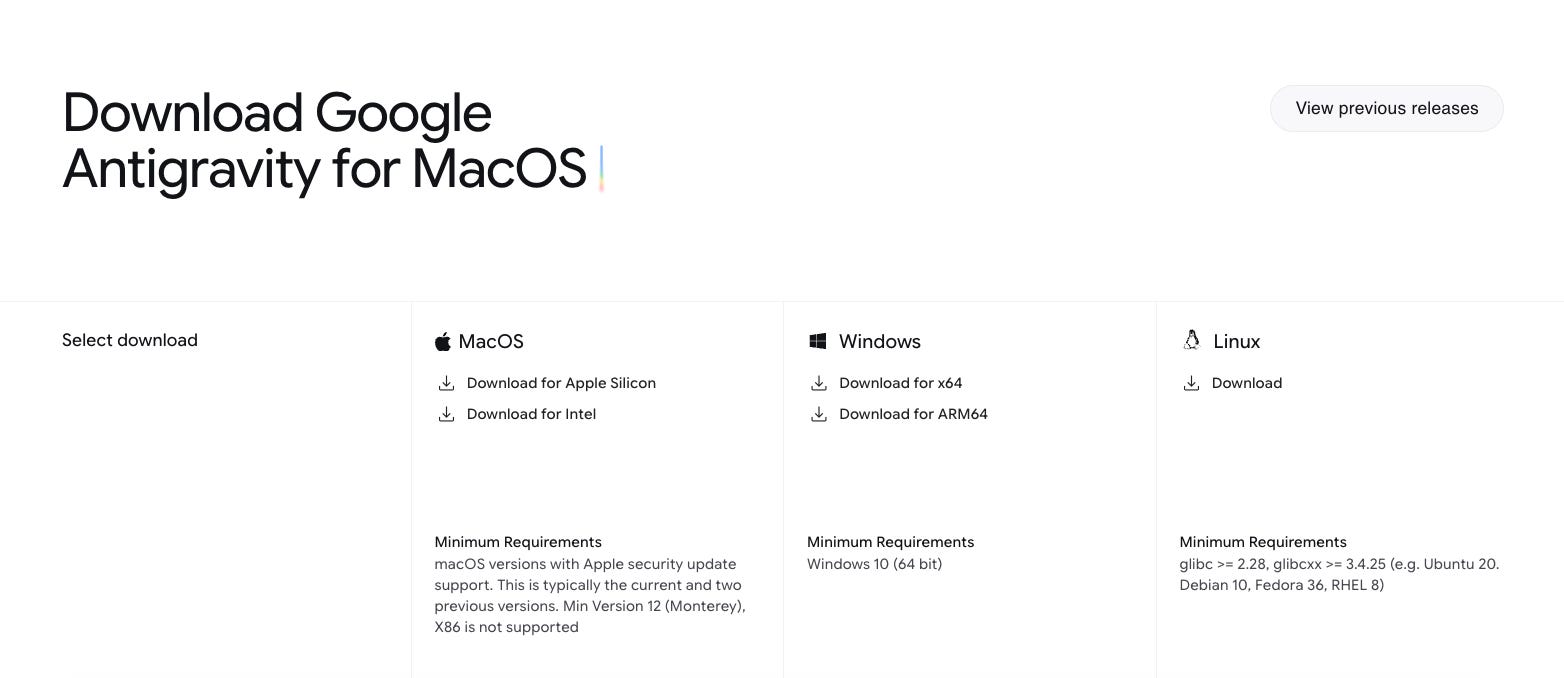
Go through your usual app install process. For Macs, open the DMG file, drag the Antigravity icon onto the Applications icon, ta-da. Windows, run the installer. Linux... well, if you’re using Linux, you know how this goes.
The magic starts to happen when you launch it because it will do a number of really cool and important things. It walks you through step-by-step: logging into Google (you have to have a Google account to use this), and installing a few things depending on your system. It will ask for permission, and that’s okay.
The other thing that is really amazing, and that sets Antigravity apart from all the other tools, is how it integrates with Chrome. It installs a Chrome extension so when it needs to build a web page or a web app, and you say, “I want this web page to do this and that,” it will literally open up a web browser and browse. It’s only running local files, but it will do things. I’ve watched it click boxes, fill in text boxes, click buttons, generate things, and report back: “Yep, that worked,” or, “Nope, that didn’t work.” That to me is one of the things that sets Antigravity apart.
Honestly, I didn’t use Antigravity correctly at first. I just didn’t understand how to manage workspaces and jump into different projects. I didn’t understand what the Agent Manager really was until I watched this tutorial (do it, really).
Once I finally got that all sorted out, and I figured out how to use it right and use the agent manager to do things, I was blown away.
Absolutely blown away.
Creating little web apps like the Hallmark Movie Plot Generator, or the thing that truly blew my mind—I made a Chrome extension to do something I do all the time, which is save links for later, in 45 minutes.
Once you start using the Agent Manager; this is where it’s truly amazing. You type in like you would in Gemini, Claude, or ChatGPT: “This is what I want.” I’ll go through the steps of how to start a project, but essentially you say, “This is what I want, and in the folder you’re working within, here are the files that you would probably need to accomplish the task. Let’s go do it.”
Then you watch it build the plan and ask you along the way for questions and input. When it’s ready, it says, “Here’s the plan. Proceed.” You either update the plan a bit or click the proceed button, and off it goes.
I’ve built things in Gemini Canvas, copying and pasting the code into BBEdit (my editor of choice for nigh on 30 years). Painful, but it works (mostly). And while I’ve also vibe coded in VS Code using both the GitHub Copilot tool and Gemini Code Assist, and made awesome things, once I figured out how to really use Antigravity correcty, I created even more amazing things. It became just so easy to have an idea, either build a PRD (product requirements document) in Gemini or start right with the Antigravity Agent, and watch it appear.
I took some content and layout ideas and built a new website for this project (coming soon) in less than an hour. Need a quick run through some terminal commands to rename files? How about truck through a whole folder of images with generic names like Gemini_Generated_Image_fd9800fd9800fd98.png and get a filename that actually describes it?
All things I’ve done in Antigravity in just the last week.
Yeah, it’s installed, but how to I actually set up my machine to use Antigravity correctly?
Don’t worry, I got you.
This is one of those “don’t do what I did” things. I’ve been a Mac user since 1987. Putting spaces in filenames is just what I do. We’re all used to it now, right? Here’s the catch, when you’re dealing with vibe coding, filenames, directory (folder) names, whatever names with spaces in them are a royal pain the in ass.
Why? Let me tell/show you.
I set up my directory for all my coding and named it “Vibe coding”. Cool, right? Except when I’m trying to do anything on the command line in Terminal I can’t type cd Vibe coding/my project (let’s assume you named your project folder “my project”) because you’ll get an error. Don’t believe me? Here’s what happens:
trishussey@Ink-Pot ~ % cd Vibe coding/my project cd: too many arguments trishussey@Ink-Pot ~ %
Why? Because the command “cd” is trying change to a directory that doesn’t exist (Vibe) and then try to read those other words as commands. Oh, yes, you can surround all those with “ “ so cd “Vibe coding”/“my project” will work. No big deal, I’m using this nifty program Antigravity, it’s smart, it won’t care.
Wrong.
A huge part of what Antigravity does is run commands in Terminal for you. Like creating files, making directories, moving things around, installing software, generally doing stuff for you, and when there are spaces in filenames or directories even it gets confused and messes up. I’ve watched more than a few commands fail because some doofus (me) had a space in a filename somewhere. Even the freakin’ AI messes up how to run a command where some file has a space in the name
So, let’s do this right from the start okay?
Yes, I fixed the issue without breaking things with a handy command to make the system know that “vibecoding” and “Vibe coding” are the same place.
First, create a folder on your computer. Call it coding-vibes, my-code, cool-vibes or anything with out spaces or “.”. You can use “_” and that’s okay too.
In this folder you’re going to create all your projects. Want to start something new, before you launch Antigravity, go into your coding love-fest folder and create a folder (again, no spaces or use “-“ or “_”) for the project. So not “my project” but “myproject” , “my-project” , or “my_project”.
Now let’s build something
Launch Antigravity and start in the Agent Manager. If the Editor pops up first, click the “Open Agent Manager” button.
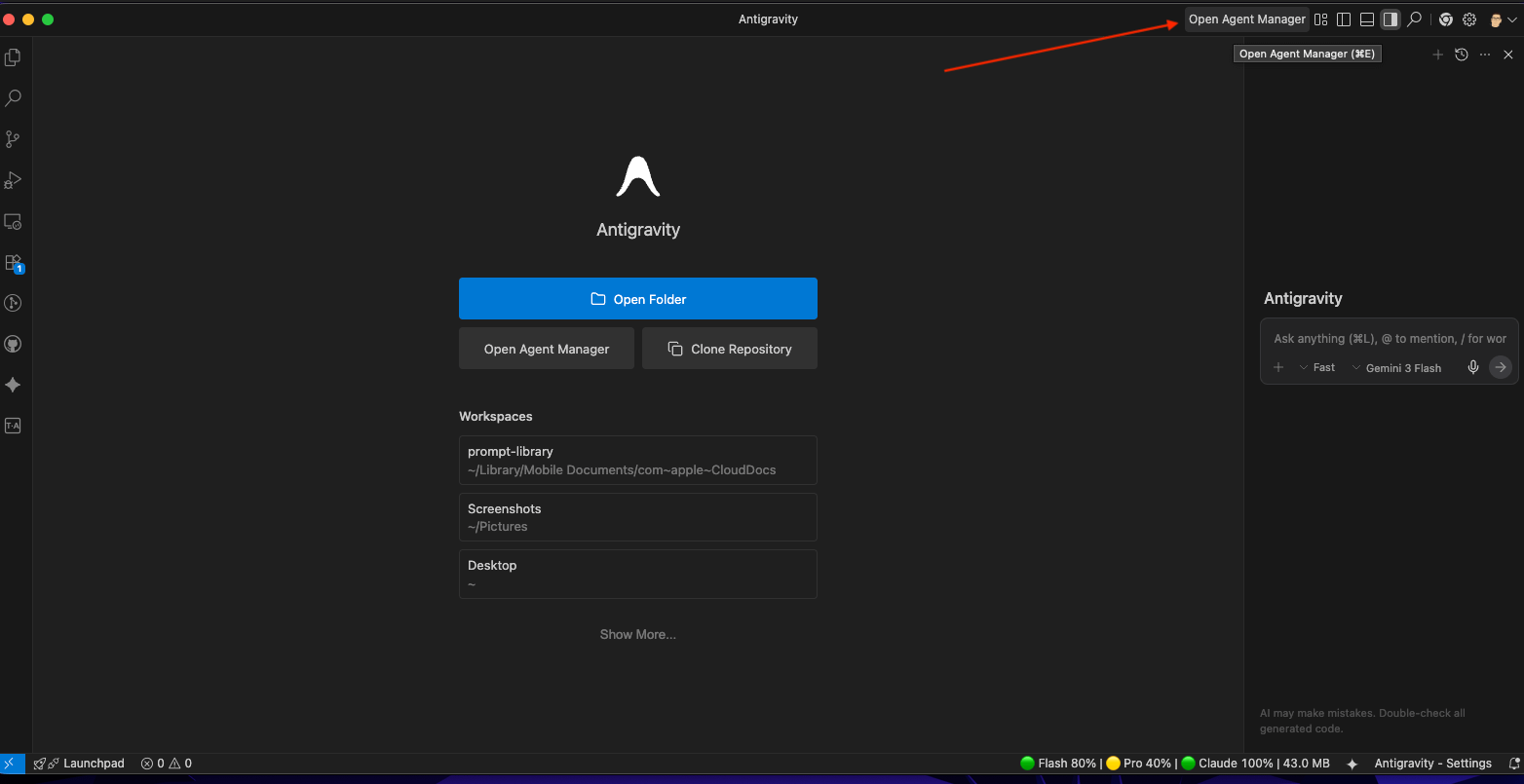
In the Agent Manager, open the sidebar if it isn’t already open, and click “+ Open Workspace” then click
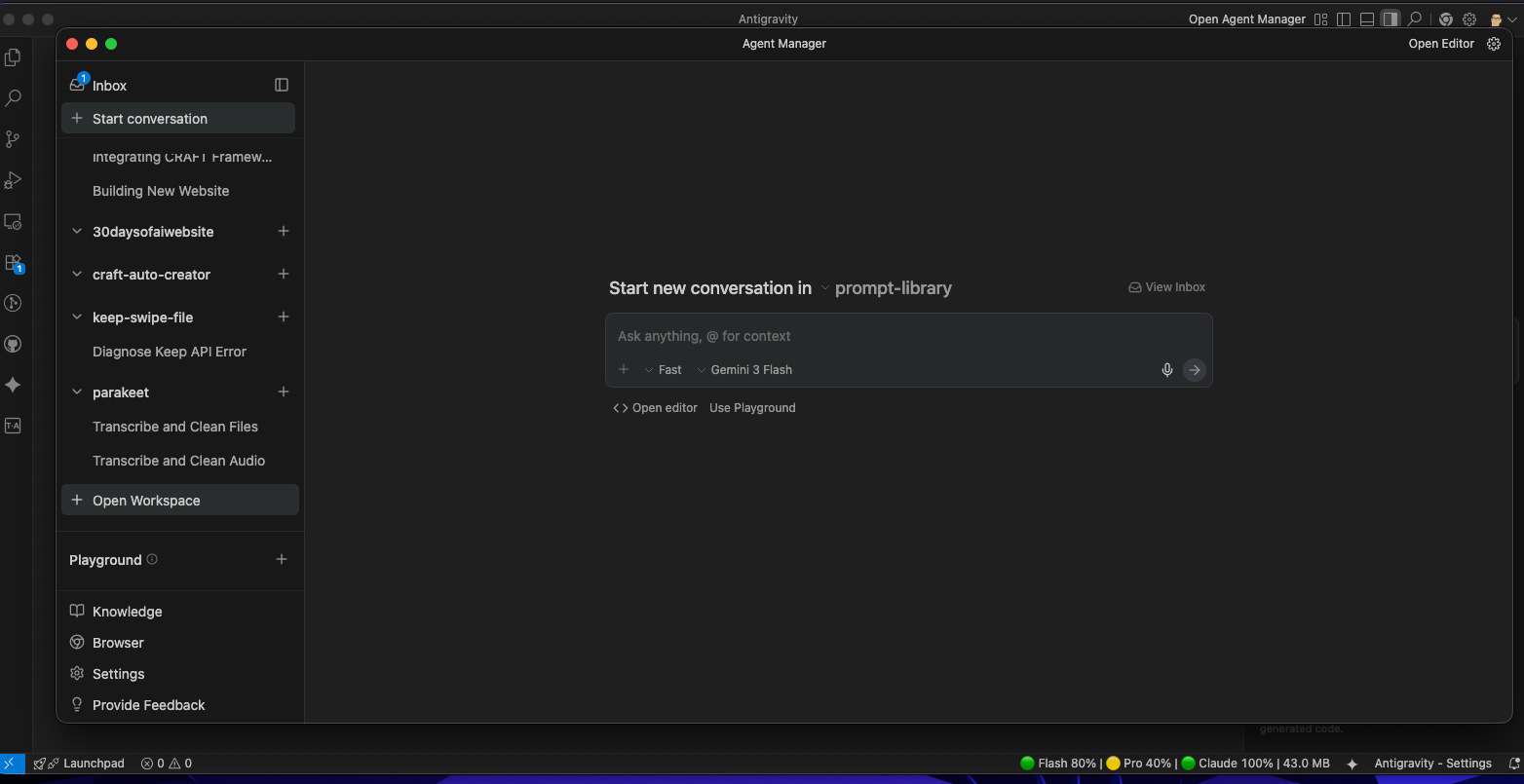
“Open New Workspace”
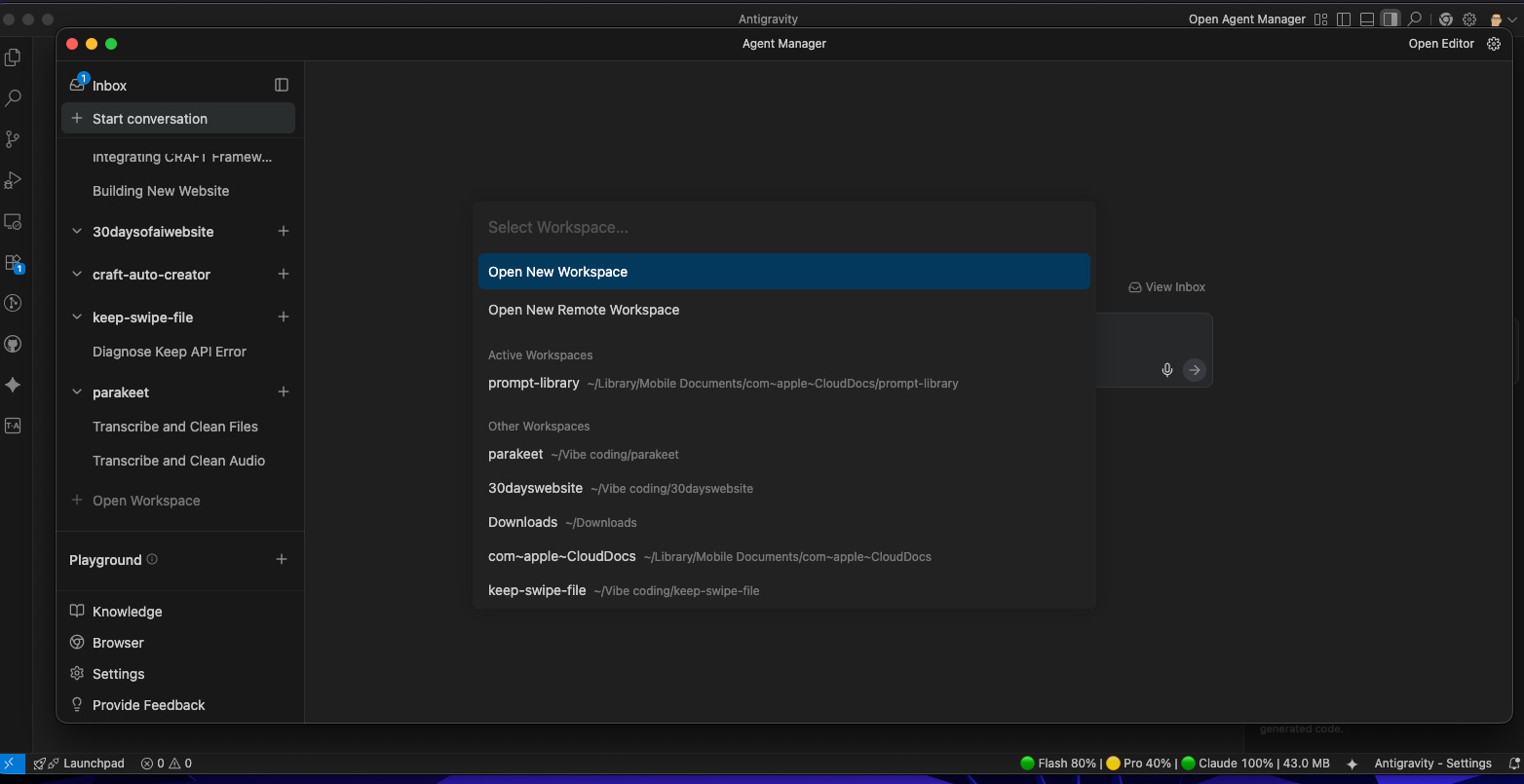
Navigate to where your new project is going to live, click on the folder name, then “Open”
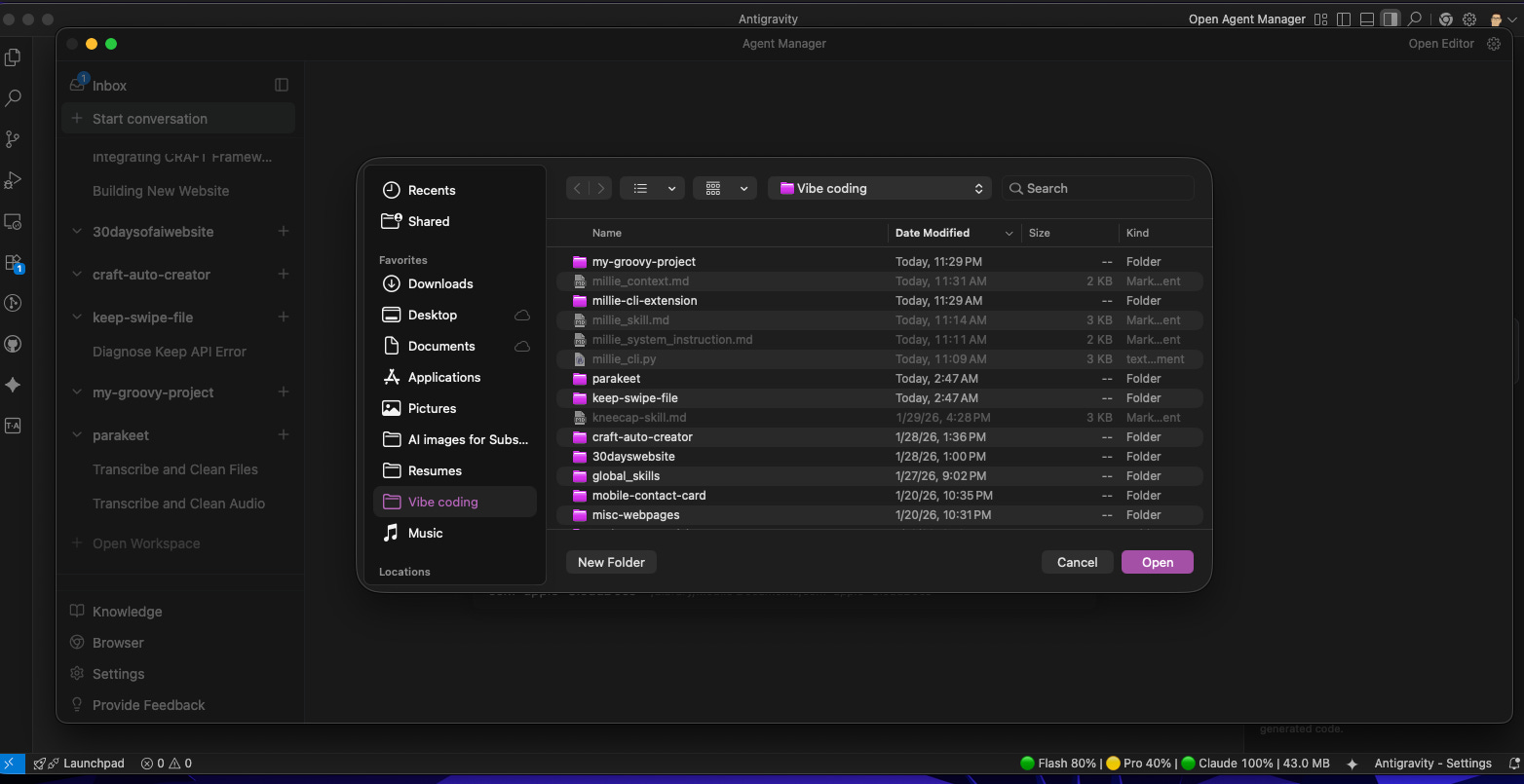
Now you’re ready to, well, do pretty much anything.
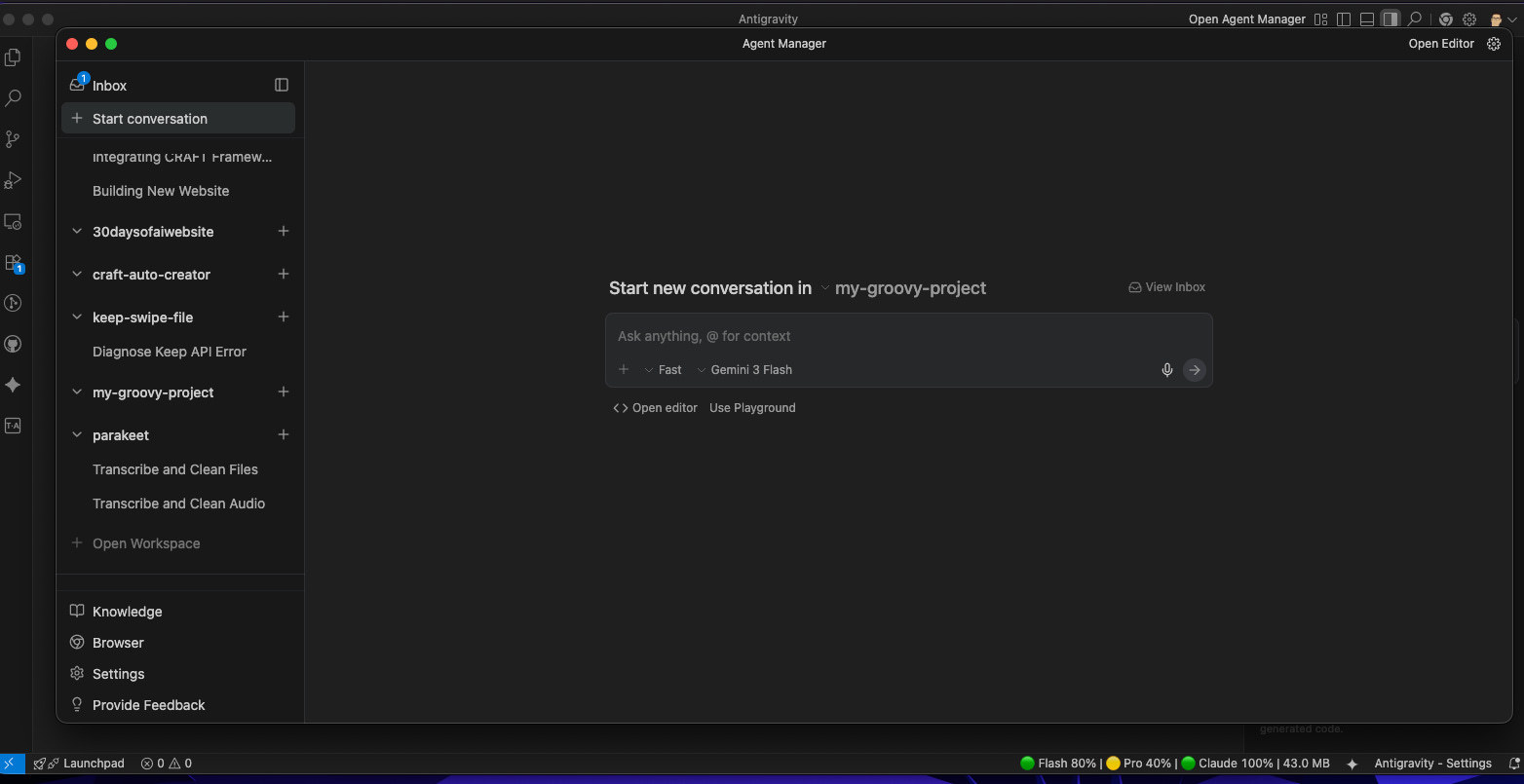
Well, almost.
Give Antigravity some help getting started
While I often open a new project and start with something like:
Review each of these screenshots and rename them based on what they show.
(Which works like the dickens BTW)
When you want to build something a little more robust, you should have a plan. The easiest way to do this is head over to Gemini and tell it what you want to accomplish and help you write the PRD file and any other requirements documents needed for Antigravity to do its job.
Here’s what we’re going to do. I’m going to use my LinkedIn Carousel Maker Gem to create an outline from Day 24: What makes a good workflow, and have Antigravity make a webpage for it.
Here’s how it goes:
Generate the outline (I had Gemini suggest some ideas for images
Copy and paste that outline into a new Gemini chat in Pro mode using the Canvas tool, because we’re going to be doing coding-related jobs. Thinking might do the trick, but Pro will always work better. Canvas makes it all easier to review.
Tell Gemini that we want to use this outline as the basis of an infographic style, single-page, webpage.
Build a PRD to give to Antigravity to create the page, the text, and images.
Save that PRD into our project folder
Then...watch what happens.
