
Day 28: Google Workspace Studio: I wanted an automated swipe file, but got a meeting mastery tool instead.
Things don't always go to plan, but sometimes that's a good thing. Also: Arrggh and WTAF AI tools!

Welcome to Day 28 of 30 Days of AI. Today we’re talking about Google Workspace Studio.
Caveat: Google Workspace Studio is only for people who have Google Workplace. If you have Google at work and you go into what looks like Gmail, but it has your company’s domain name, this could be for you. If you don’t see it, ask your administrator.
Despite only being available to Google Workspace users—there are a lot of you out there—I wanted to talk about Workspace Studio for two reasons. One, it’s a great example of building AI-enabled workflows right within the workspace where you are. Don’t get me wrong, Make, n8n, and the rest are cool, but they aren’t securely housed within your workspace. When I create a Flow in Workspace Studio, I know my data isn’t traveling across the internet from hither, dither, and yon to complete the task at hand. Everything stays in my nice, protected Workspace.
The other reason was because there are a lot of Google Workspace users out there, I wanted to show you what could be built and how useful it can be.
Okay, fine, I wanted to play with it too and I needed a kick in the pants to finally dig in and do stuff in it.
Before we dive in I have one piece of advice for you:
Fair warning there’s a really good chance of frustration ahead if you start playing with it. Google Workspace Studio can do amazing things, but I think it might have a greater learning curve than Google lets on. Google makes their examples look just so cool and easy it couldn’t be that hard, right?
Wrong.
I almost was going to focus only on this frustration as a word of warning for trying Google Workplace Studio. But then I had an idea last night to take Gemini generated meeting notes and process them with the prompts I shared on Day 24 AI Workflows—pull out the attendees, pull out the agendas, pull out the action items, pull out the decisions, make a report, draft an email. I thought it would be really easy—it wasn’t—but I got it working and from there built two more Flows (that’s what Google calls them that I think are going to be really helpful at triaging emails.
What is Google Workspace Studio?
Like Google Opal—but this isn’t an experiment—it’s a visual workflow builder. While Opal is focused more on web apps that tap in Gemini, Workspace Studio Flows have some AI built in, but they can also do simple things like “when an email comes in from this person, label it, and send me a immediate notification” or Give me a briefing for an upcoming meeting in Google Chat.
As much as these Flows have a lot of potential, they are also limited. As of this moment they can only connect and work with:
Gmail
Docs
Sheets
Chat
Tasks
Drive
Calendar (reading, not writing)
Plus there are timings (only at the start), run a Gemini prompt (not a Gem, have to paste in the prompt), logic, filters, and some basic things like extracting and summarizing you can work with. Hey, it’s still a lot. Right now, and not without a lot of swearing and fighting, I have Flows that:
Send me the latest AI news every morning
Pull new job links into a single Doc to review (with Chat letting me know it’s there)
Add a “To Respond” label to emails where I have an action item
Create a meeting report with actions, decisions, etc when a new Gemini-meeting document is saved to Drive. The report is a Doc and I get a chat notification when it’s ready
So don’t let the current lack of features keep you from trying it. There is a “Discover” section with pre-made Flows to test and turn on. You can fully customize these starter Flows as well. There’s one that sounds good—if there’s an email with an action item, add a new Task. Except it flagged a Facebook update and a few other odd things as needing tasks. Before I turn it back on I’ll tune the “Decide” logic to make sure Facebook and calendar reminders are excluded.
How to get started with Google Workspace Studio
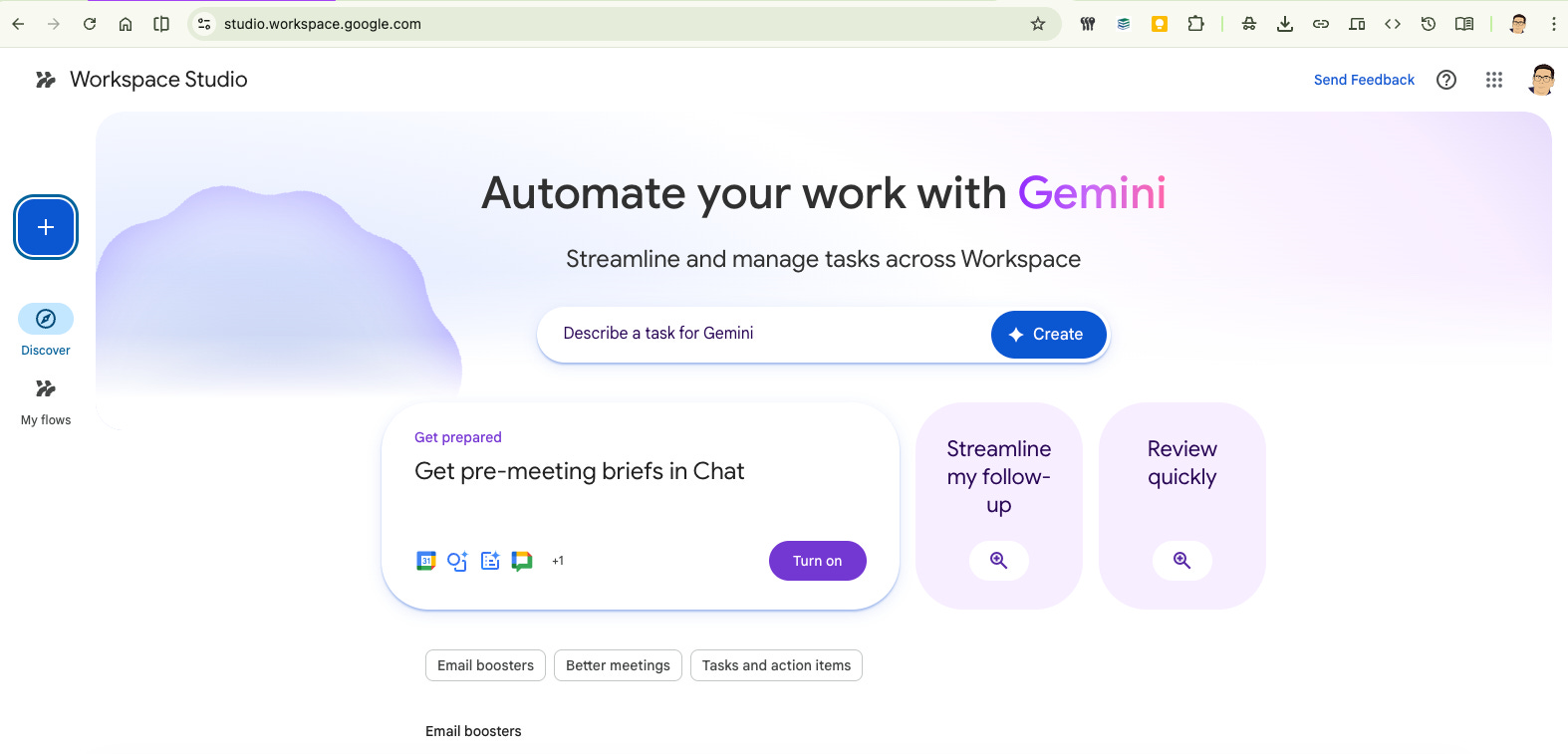
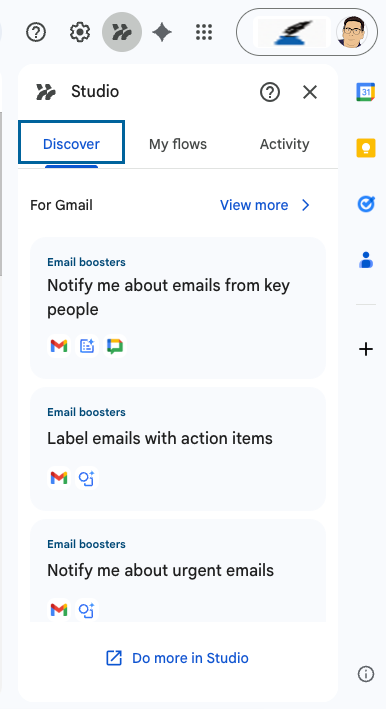
You can go to Workplace Studio directly, but I actually stumbled on it when I was in Gmail on day. The automated Gmail-Gemini actions had been replaced with Flows…with the encouragement to try them out.
When you arrive at Workspace Studio, I’d try the “Tell Gemini what you want” approach first. While my experience has been hit and miss doing that, it’s worth it to see how Gemini thinks it should put things together.
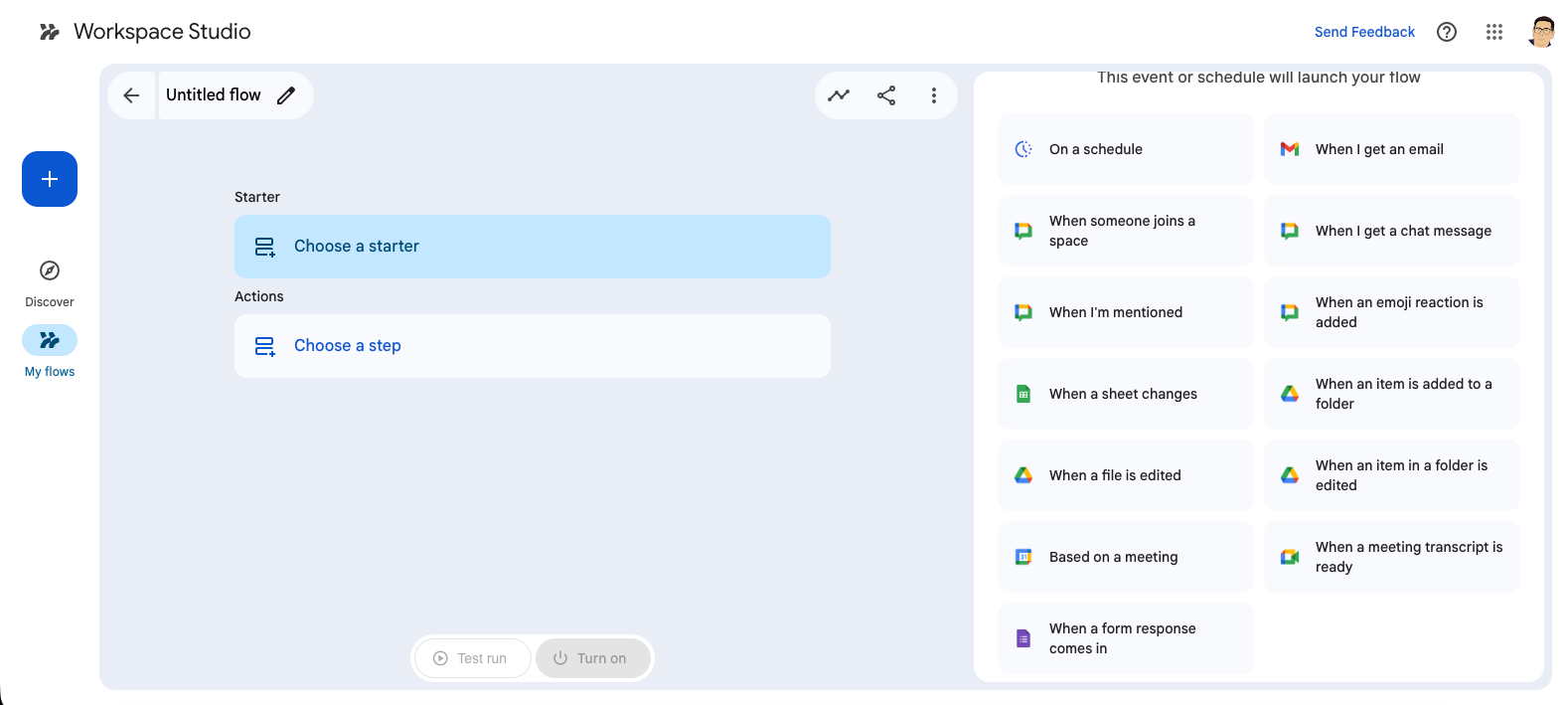
If you want to start from scratch, click the blue plus on the left side and you’ll get a blank (ish) canvas to work with. It’s blank-ish because you must decide on a trigger. Is it time? Do something on a schedule? Is it when an email comes in—either all of them or specific ones? Or something happens with a document? Meeting notes?
Once you have that set, you will probably want an “extract” step to pull out information. There are default parts that are helpful, but look at the custom ones. It looks like it’s not going to work, “Give it a name and then describe it‽ No way that will work!”
And yet…it does. Extremely well, as long are you’re pretty specific. In my meeting analysis Flow, I have it pull out the transcript as a discreet thing, email addresses, date, meeting title, etc. These can all be then piped down to later steps.
From here, it’s add a step, see what it needs, click the + Variables to add info from a previous step—you’ll see a little triangle for a menu to pick variables—and test it out. Have an idea for a step, test it. Didn’t work, what about another angle. I think that’s the secret of making good Flows: finding the other way up the mountain.
Expect that as you do test runs things will fail. Expect that your first idea might not work exactly how you think it will. Case in point, my Flow for taking the meeting notes and transcript Gemini creates and creating a meeting report automatically.
Tip: The “Ask Gemini” step is really powerful. It’s just like any Gemini chat window! Except it doesn’t work for back-and-forth prompts. It’s great for “pull out the action items, create an executive summary, note the decisions made” prompts. Something where you give Gemini an instruction and then you expect an output that you take as-is. And break things up into chunks:
Find a section of a newsletter.
Pull out the links
Follow the links
Summarize what you find
You’ll get much better results without Gemini getting lost. Remember you can’t course correct here!
Getting automatic meeting report summaries made
Here’s the best example I have of finally getting the knack of making Flows and getting something that would actually help me be more productive.
If you’ve had Gemini take notes for you in Google Meet, you know a few minutes after the meeting ends you get an email telling you the notes and transcript are ready. When I first tried to make this meeting report flow I thought I should start with Gmail. It’s an email, right? The link to the Doc is there, right?
It was easy enough to get the right email to come up, but it wouldn’t find the transcript. What is going on? I tried all kinds of ways to extract the information and nothing worked (maybe now that I’d played with customer extract variables, I might be able to do it how I first imagined it).
Finally, it dawned on me after clicking a bunch of things is: The document gets automatically saved to my Drive in a particular folder every single time.
Huh. Now I get it.
New tack, when a new thing hits this folder, do all the steps I wanted:
pull out the transcribe (custom variable)
pass the transcript through the meeting master prompts.
create a Doc with all the information
ping me in Chat
There are weird things about how the document gets formatted that I want to polish (tables are in Markdown, so not great), but it works. It just takes a little trial and error to get the small details working.
But this meeting report Flow isn’t what I wanted to start with. What I wanted was to build a swipe file in Google Keep. Seemed pretty easy: label an email in Gmail, get the link, follow the link, get a summary, send link and summary to Keep.
Turns out it’s not so easy and it has a great lesson for building AI-enabled workflows.
